Key Takeaways
OpenClaw is the orchestration layer, not the network layer. This guide walks through implementation details, validation steps, and production troubleshooting for proxy-backed browser workflows.
Most teams do not lose reliability in OpenClaw because their prompts are weak.
They lose reliability because proxy wiring is treated like a checkbox:
"we added a proxy config, so we are done."
Then the first real workload arrives:
- one workflow needs sticky continuity, another needs rotation
- retries multiply bad traffic instead of recovering it
- geo-targeted pages return inconsistent content
- block rate climbs as soon as concurrency increases
If this sounds familiar, you are in the right place. This guide is intentionally practical. We will focus on implementation boundaries, rollout sequence, and debugging order so your team can actually operate this in production.
Who This Guide Is For
This guide is for teams running OpenClaw as an agent orchestration layer where at least one task performs browser access to public websites.
Typical examples:
- data collection pipelines
- competitor and price monitoring
- QA workflows that include authenticated web flows
- agent tools that call Playwright, Puppeteer, or remote CDP browser sessions
If your workflow never touches browser traffic, this guide is probably overkill.
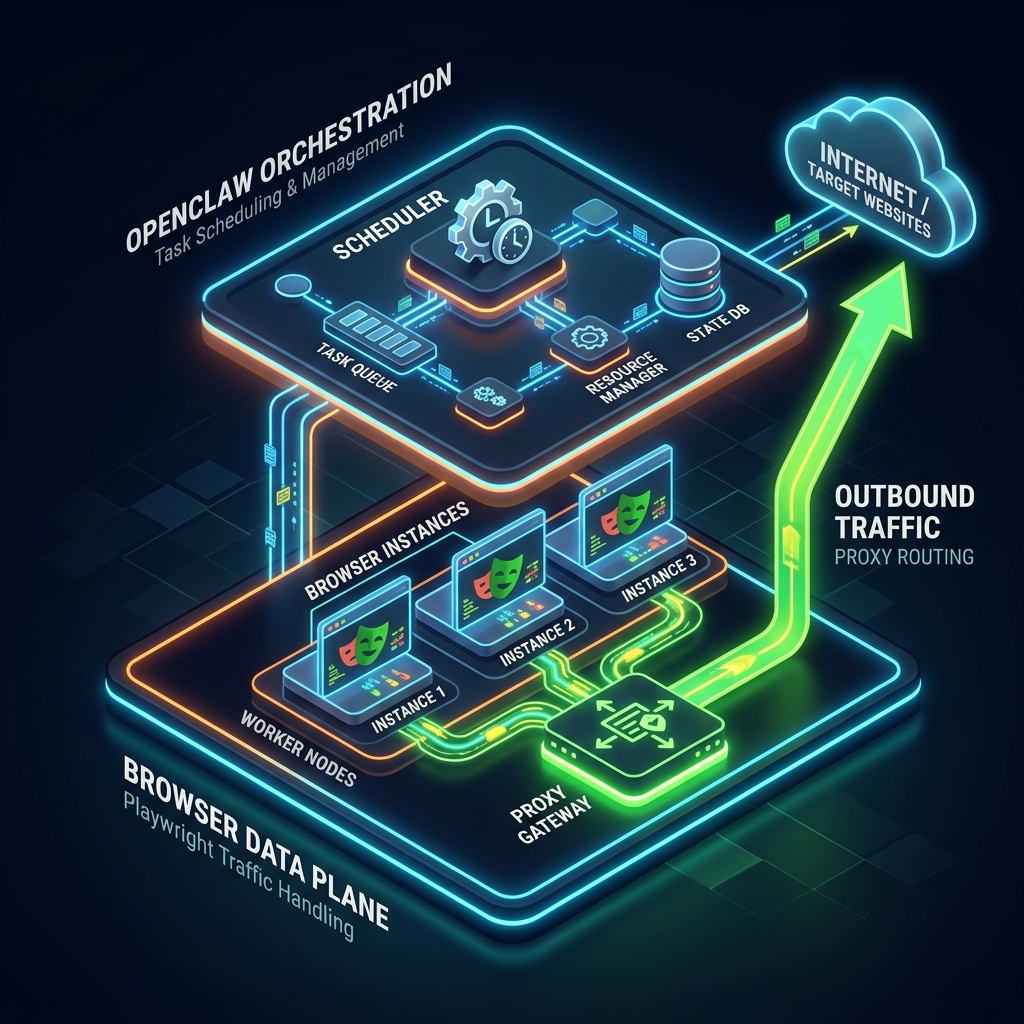
First Principle: OpenClaw Orchestrates, Browser Layers Emit Traffic
OpenClaw setup generally starts with commands like
openclaw onboard or openclaw configure, with runtime config in ~/.openclaw/openclaw.json.That is orchestration and control-plane setup.
Proxying is data-plane behavior. It belongs where outbound requests are emitted:
- browser tool implementation
- profile-specific browser runtime
- Playwright or Puppeteer launch logic
- remote CDP-connected browser worker
If you remember one sentence, remember this:
when debugging blocks, inspect the component that opens pages, not the component that schedules tasks.
A Reliable Rollout Sequence (Do This In Order)
Many proxy projects fail because teams change five variables at once. Use this order instead:
- Prove the non-proxy browser path works.
- Add proxy config at the browser boundary only.
- Verify egress IP and geo.
- Choose session policy per task type.
- Scale concurrency gradually with telemetry.
Skipping step 1 is the most expensive mistake. If your browser path is already unstable, adding proxies only hides root causes.
Step 1: Validate Your Baseline Path
Before adding credentials, verify the current execution path:
- OpenClaw runtime starts cleanly.
- The target tool can open a page.
- Browser profile or remote CDP connection is stable.
- You can run the same task repeatedly without proxy and reproduce baseline behavior.
You are not trying to "pass" yet. You are creating a clean before-state so changes are measurable.
Step 2: Gather Proxy Inputs Up Front
Collect and normalize these fields before touching code:
- proxy endpoint (
host:portor full URL)
- auth credentials
- supported protocols (
http,https,socks5)
- session mode options (rotating and sticky)
- geo constraints (country/city/ISP if needed)
Store credentials as environment variables from day one. Do not allow hardcoded secrets in scripts, examples, or config exports.
Example:
export PROXY_SERVER="http://p1.bytesflows.com:8001"
export PROXY_USER="username"
export PROXY_PASS="password"
Step 3: Wire Proxy at Browser Launch
If your OpenClaw tool uses Playwright, add proxy settings at launch time:
import { chromium } from 'playwright';

function getProxyConfig() {
  if (!process.env.PROXY_SERVER) return undefined;

  return {
    server: process.env.PROXY_SERVER,
    username: process.env.PROXY_USER,
    password: process.env.PROXY_PASS,
  };
}

const browser = await chromium.launch({
  proxy: getProxyConfig(),
});

const page = await browser.newPage();
await page.goto('https://iprobe.io/json');
console.log(await page.textContent('body'));
await browser.close();
For teams using browser profiles or remote CDP workers:
- apply proxy settings in the runtime that owns outbound traffic
- avoid assuming one global OpenClaw flag can override all browser paths
This boundary clarity prevents a lot of false positives where logs look fine but traffic still exits from the origin IP.
Step 4: Choose Session Policy by Workflow Shape
Session strategy should follow task semantics, not personal preference.
Workflow type | Recommended session model | Why |
Stateless page extraction | Rotating | Reduces per-IP concentration and ban coupling |
Login/multi-step stateful flow | Sticky | Preserves identity continuity across steps |
Mixed queue with heterogeneous tasks | Split pools or routing rules | One policy does not fit both reliability profiles |
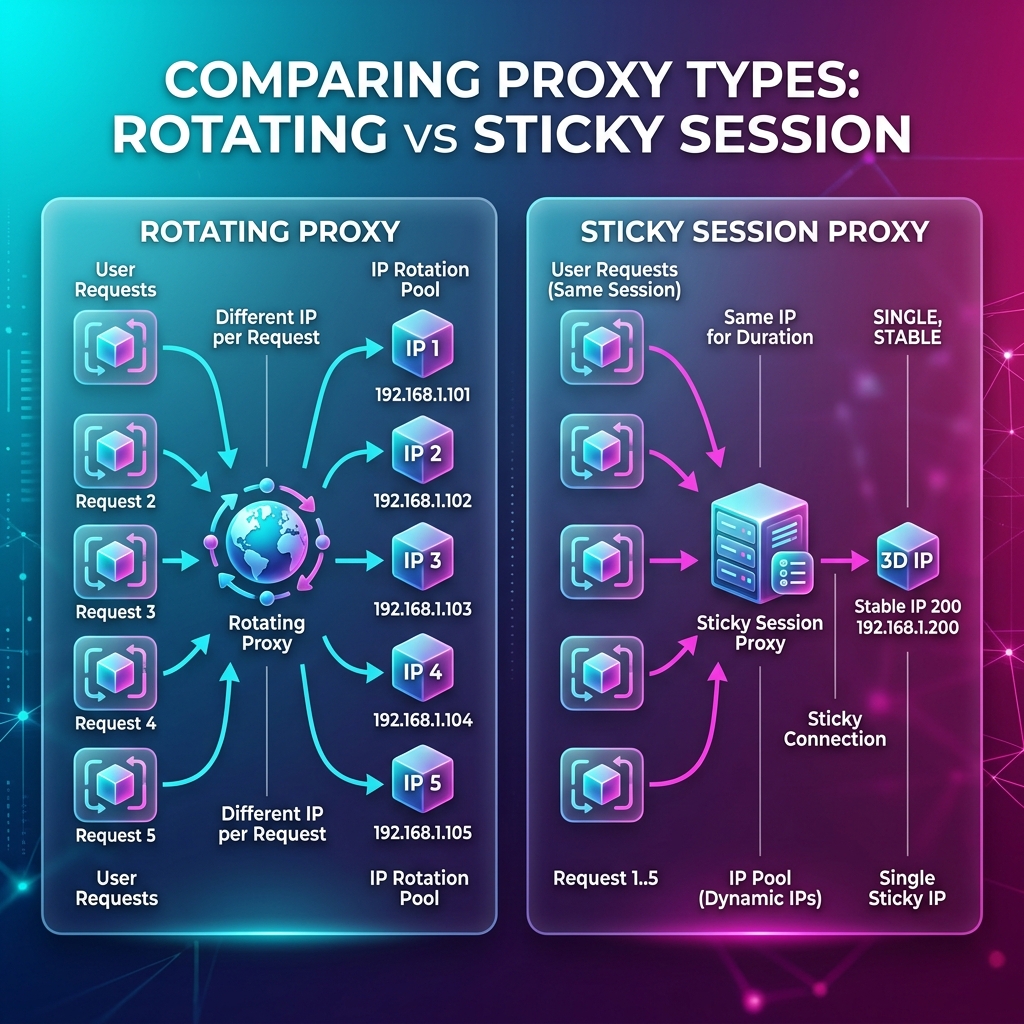
A practical pattern is to route by task metadata:
type TaskMode = 'stateless' | 'stateful';

function chooseSessionMode(taskMode: TaskMode) {
  return taskMode === 'stateful' ? 'sticky' : 'rotating';
}
If login tasks degrade after you "improve rotation," that is usually a continuity mismatch, not a framework bug.
For deeper policy design, pair this with proxy rotation strategies.
Step 5: Validate End to End Before Scaling
After wiring proxy config, run a short validation matrix:
- Egress IP changed from origin.
- Geo target matches expectation.
- Sticky task preserves continuity across steps.
- Rotating task shows distribution across requests.
- Retry behavior does not loop on one poisoned identity.
Suggested quick checks:
https://iprobe.io/json
https://api.ipify.org?format=json
https://ipinfo.io
Do not skip this. Most production incidents begin with "we assumed proxy was active."
Production Defaults That Usually Work
These are not universal, but they are solid starting points:
- Start with low concurrency per domain.
- Keep stateful tasks isolated from bulk stateless scraping.
- Enforce max retries with backoff and jitter.
- Rotate identity for retries only when the task is stateless.
- For stateful tasks, prefer sticky continuity and slower pacing.
A safe first retry policy:
attempt 1: initial route
attempt 2: same mode, increased delay
attempt 3: route refresh only for stateless task
attempt 4: fail fast + log root-cause context
Concurrency Budgeting (Simple Model)
You do not need a perfect formula. You need guardrails.
Start with:
effective_concurrency = min(worker_count, proxy_pool_parallel_capacity, target_tolerance)
Then observe:
- block rate
- challenge/CAPTCHA rate
- median and p95 page load latency
- success rate by task type
When any one metric degrades sharply, do not scale further. Stabilize first, then grow in controlled increments.
Debug Runbook: "OpenClaw Proxy Is Broken"
This phrase usually mixes multiple root causes. Use a strict order:
Case A: Egress IP never changes
Likely cause:
- config applied in control layer, not browser layer
Action:
- inspect runtime that calls browser launch
- log resolved proxy config at task start (without leaking secrets)
- run direct IP probe in that same runtime
Case B: Login works once, then fails
Likely cause:
- rotating identity inside stateful flow
Action:
- move flow to sticky session
- pin context lifecycle to flow lifecycle
- reduce aggressive retries
Case C: Wrong locale/currency/content despite correct IP
Likely cause:
- browser fingerprint settings conflict with geo route
Action:
- align locale/timezone/language headers with target region
- verify profile consistency between attempts
Case D: Low-volume success, high-volume collapse
Likely cause:
- per-domain pressure too high
Action:
- lower concurrency
- add interval jitter
- segment workloads by task type and route policy
This runbook alone usually cuts debugging time by half because it forces one-failure-domain-at-a-time analysis.
Security and Operational Hygiene
Do not let proxy setup become a secret-management problem.
Recommended baseline:
- secrets only in env/secret manager
- no credentials in logs
- redact proxy URLs before error reporting
- rotate credentials on schedule
- keep a single helper for proxy config resolution so behavior stays consistent
This reduces both incident risk and onboarding confusion for new engineers.
When Residential Proxies Become Necessary
Datacenter routes are fine for some internal or low-friction workloads.
They are often not enough for sustained browser automation against protected public-web targets.
Residential proxies usually become necessary when:
- block rate creates direct business cost
- geo fidelity affects decisions or downstream models
- browser behavior must resemble real-user traffic over long runs
- reputation-driven filtering is stronger than syntax-based filtering
If your team is already at that point, review residential proxies for OpenClaw browser workflows, compare constraints on pricing, and discuss edge cases through contact.
If you need a shared primer for less technical stakeholders, use What Is a Residential Proxy?.
Final Checklist Before Production Cutover
Before your first serious rollout, confirm:
- Proxy config is attached at browser emission layer.
- Egress and geo checks are automated in smoke tests.
- Session policy is assigned by task semantics.
- Retry/backoff logic is explicit and bounded.
- Metrics are visible by task type.
- Secrets are managed outside code.
OpenClaw itself can be stable while browser traffic fails quietly. Treat network identity as first-class infrastructure, and your agent reliability will look very different after that.
Featured Launch

BytesFlows
Residential proxies with free 1GB & daily rewards
Recommended Solution
Browser Automation Proxies
Run Playwright, headless browser, and agent workflows with sticky residential sessions and SOCKS5 support.
RELIABLE ACCESS
Residential proxies for teams that need steady results.
Collect public web data with stable sessions, wide geo coverage, and a fast path to launch.
Start Free Trial
Used by teams collecting data worldwide


